
Need a record of how learners are progressing through a course? Varsi lets you export your course analytics, making it easy to keep track of learner completion and training performance outside the platform.
Before you begin, make sure the course you want to export records for has been created and published.
Here’s how to do it.
Step 1: Open Courses
From your Varsi dashboard, head to the menu on the left-hand side.
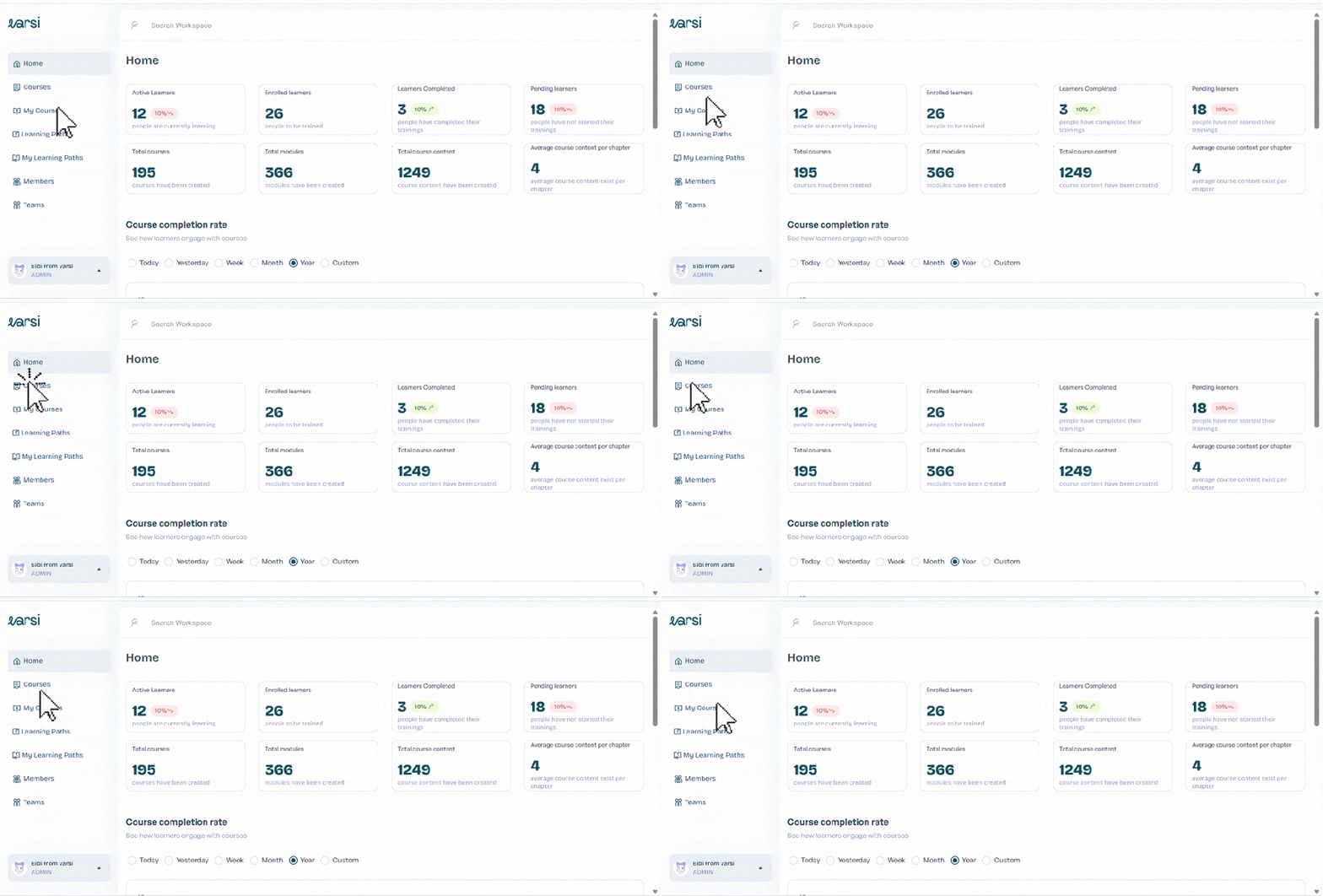
You’ll find Courses alongside Home, My Courses, Learning Paths, Teams, and Members.
Click Courses to open your course library.
Step 2: Select Your Course
The Courses page displays all the courses you’ve created, including published courses and courses still in progress.
Find the published course you want to export learner completion records for and click on it.
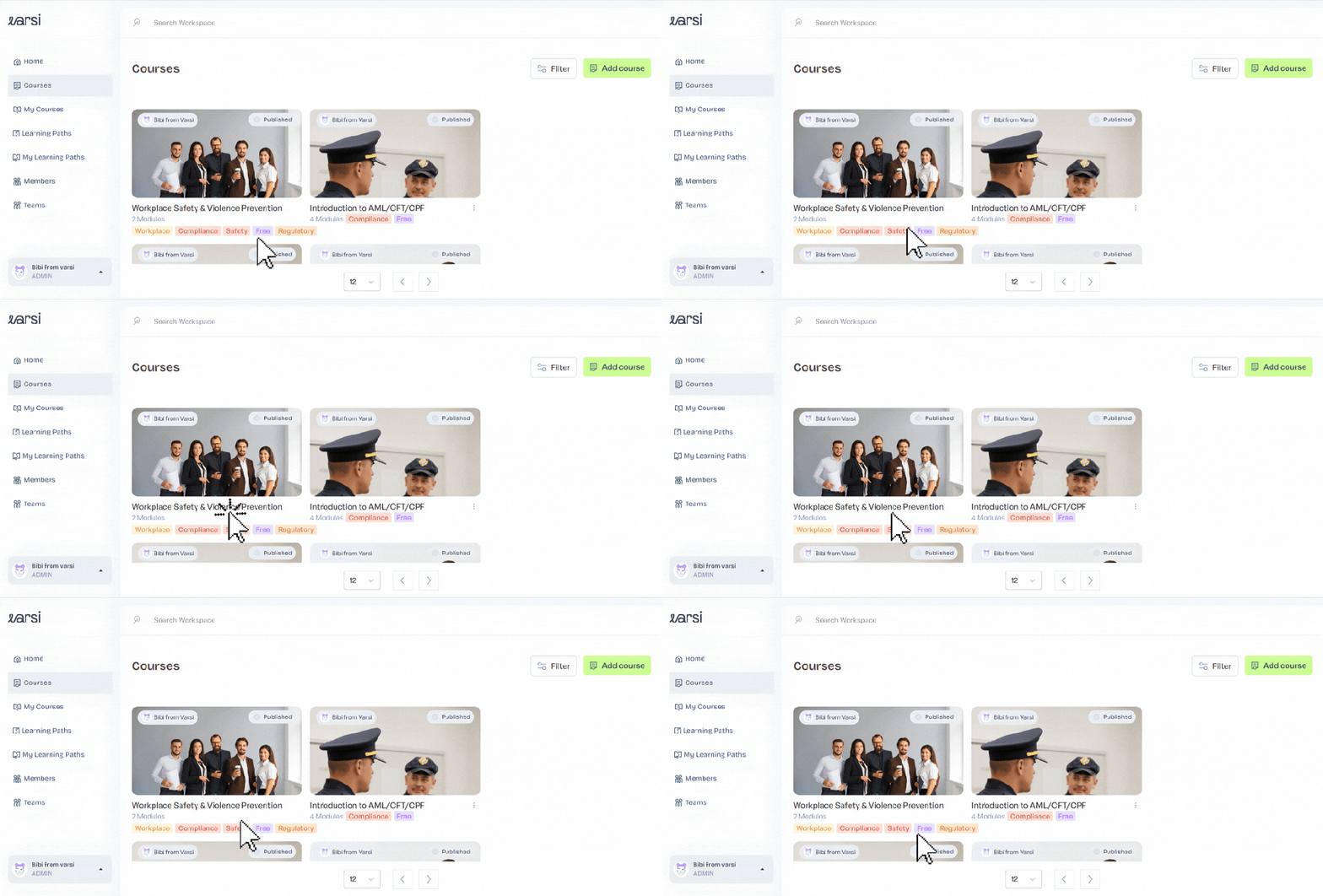
This will open the course Overview page, where you’ll first see an overview of its modules.
Step 3: Open Analytics
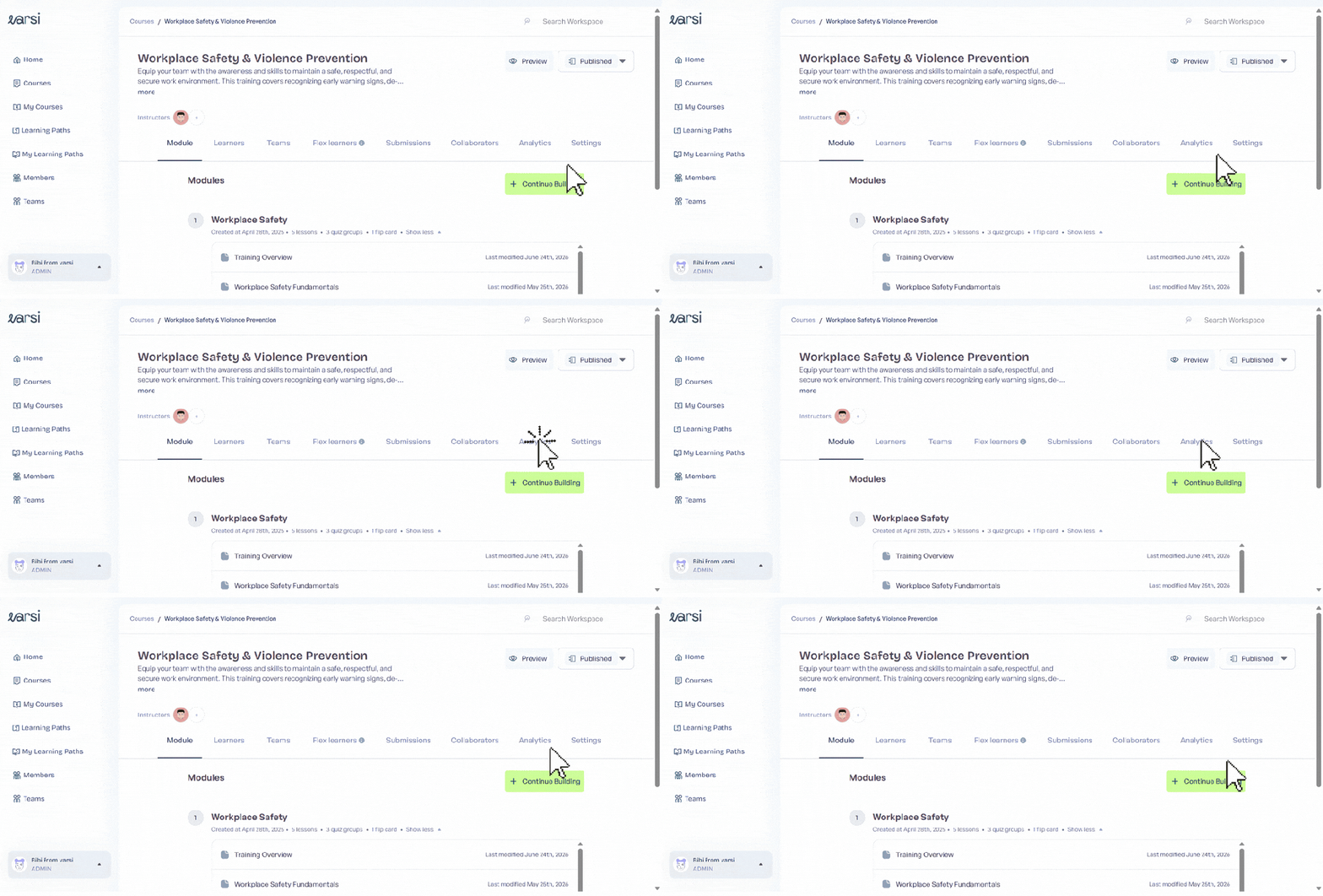
On the course page, you’ll find a horizontal menu with options including Learners, Teams, Flex Learners, Submissions, Collaborators, Analytics, and Settings.
Click Analytics to view performance and learner activity for the course.
Step 4: Review Your Course Analytics
The Analytics page gives you an overview of how learners are progressing through the training.
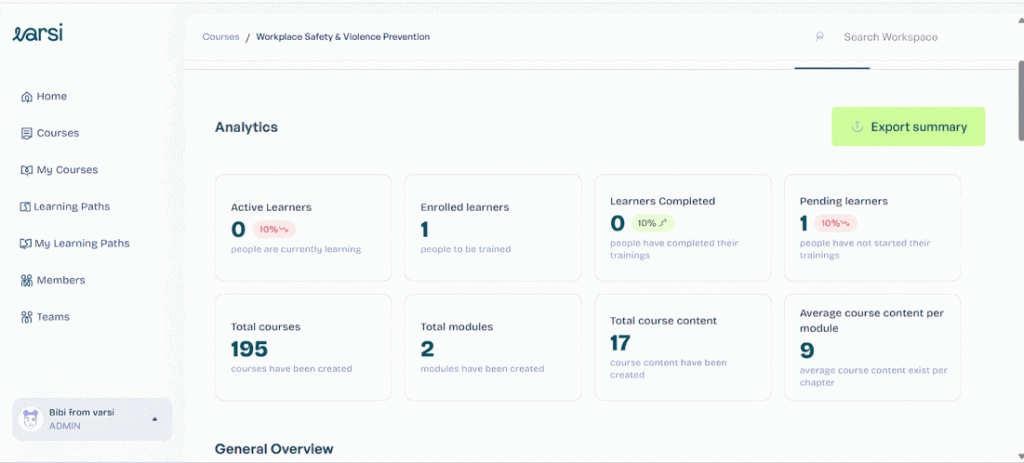
Here, you can view metrics including:
- Active, enrolled, completed, and pending learners
- Total courses, modules, and course content
- Average course content per module
- Completion rate
- Assessment pass rate
- Assessment insights
- General learner activity and performance
You can use these insights to quickly understand participation, completion, and assessment performance before exporting your records.
Step 5: Export the Summary
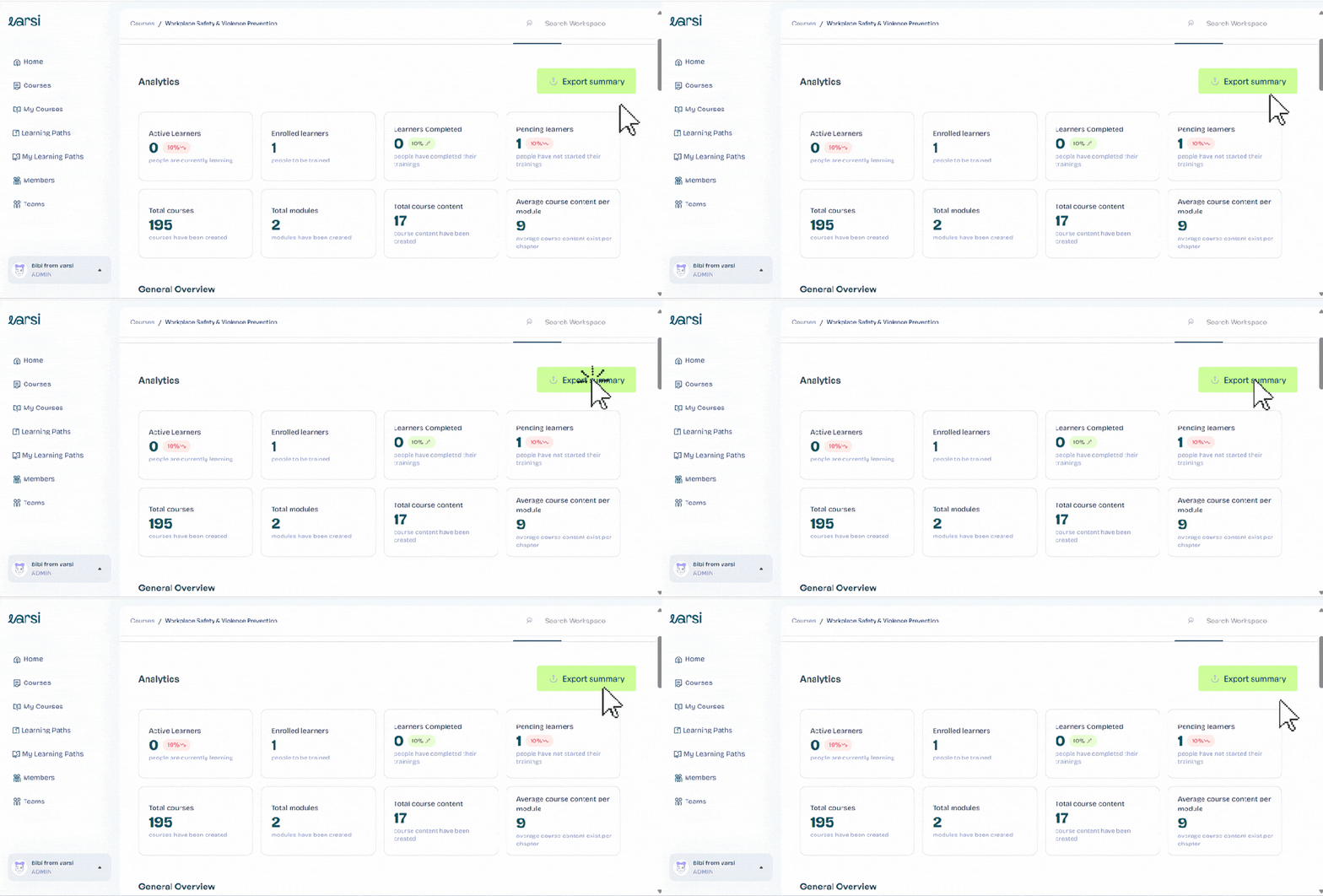
At the top of the Analytics page, click Export Summary.
Varsi will export the course analytics, giving you a record you can use for reporting, documentation, or further analysis.
And that’s it! You now have an export of your course and learner completion data ready to use outside Varsi.


Leave a Reply