
Course ready? Now it’s time to get your learners in.
Adding learners to a course on Varsi takes just a few clicks. Once added, they’ll have access to the training you’ve created and can get started.
Before you begin, make sure you’ve already created the course you want to add learners to.
Here’s how to add learners to a course on Varsi.
Step 1: Open Courses
From your Varsi dashboard, head to the menu on the left-hand side. You’ll find Courses alongside Home, My Courses, Learning Paths, Teams, and Members.
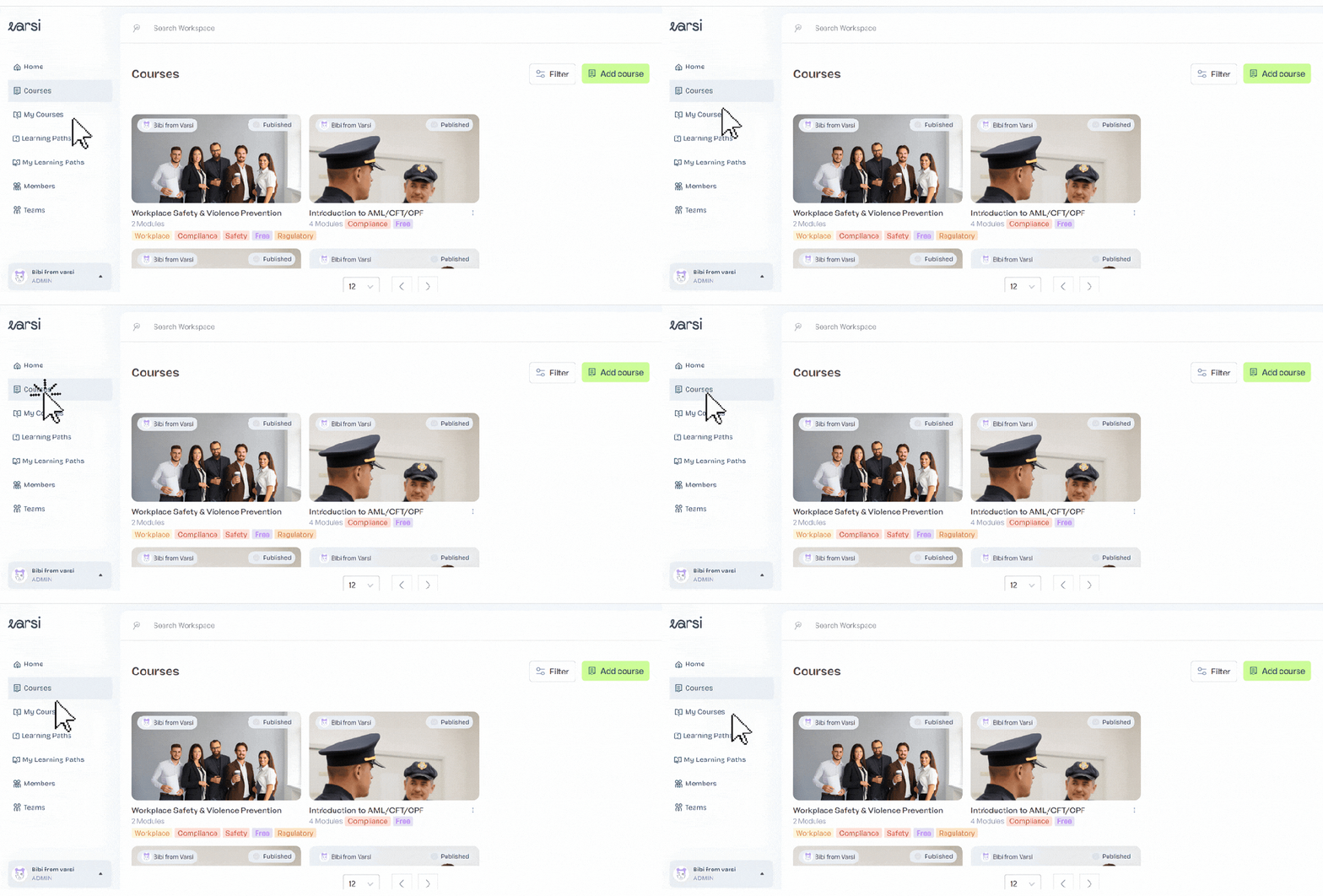
Click Courses to open your course library.
Step 2: Select Your Course
The Courses page displays all the courses you’ve created, including published courses and courses still in progress.
Find the course you want to add learners to and click on it.
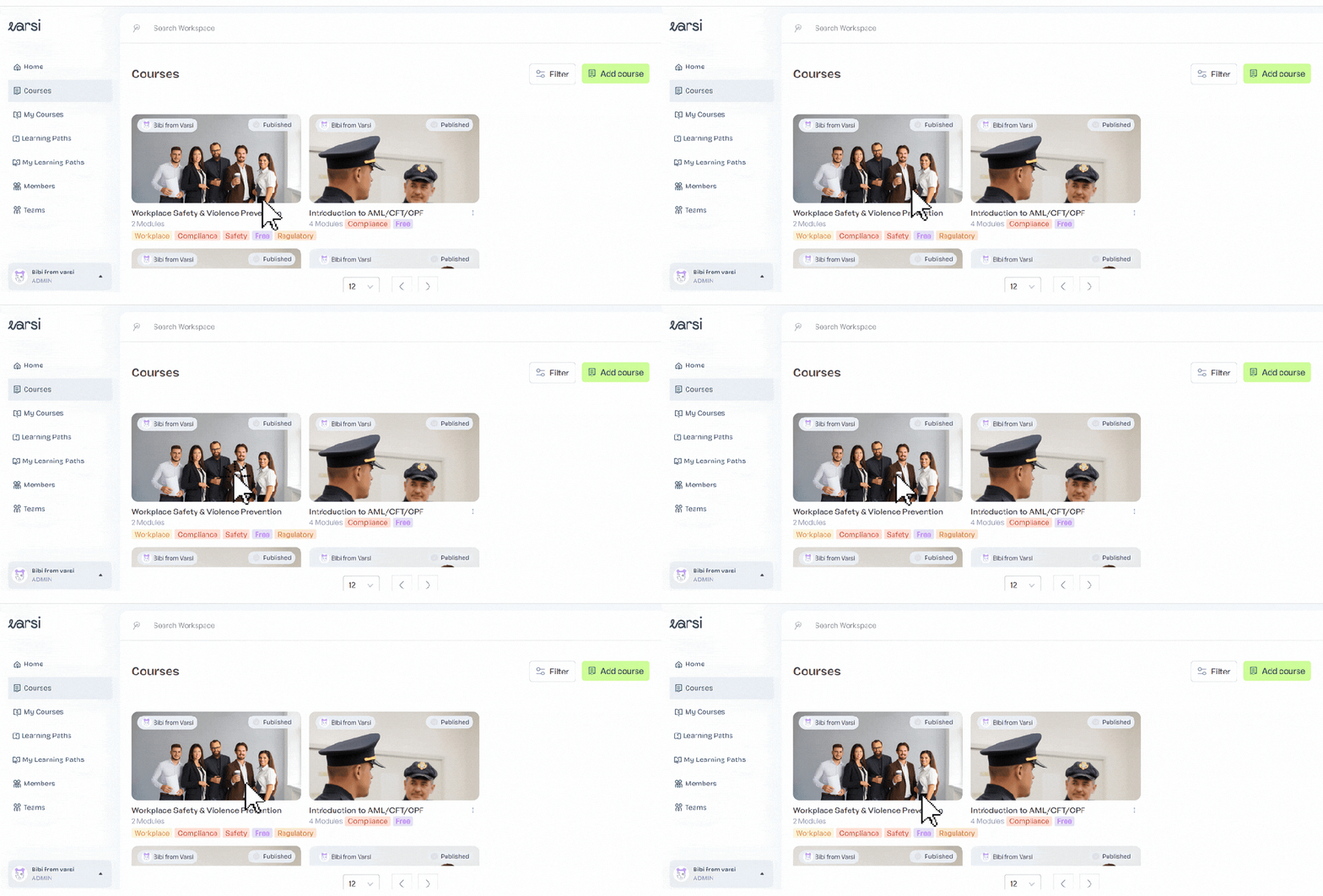
This will open the course on its Overview page, where you’ll first see an overview of its learning modules.
Step 3: Open the Learners Tab
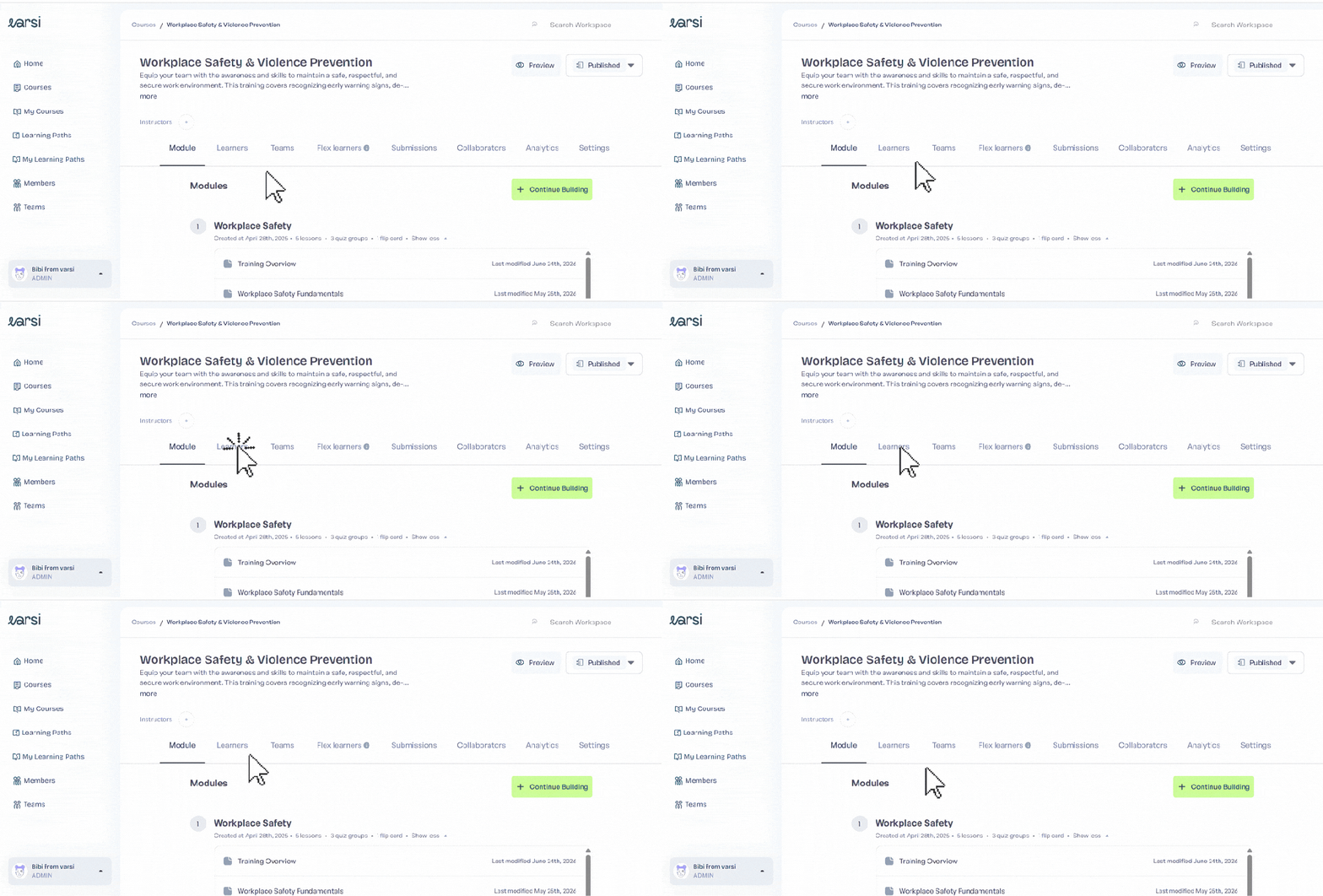
At the top of the course page, you’ll find a horizontal menu with options including Learners, Teams, Flex Learners, Submissions, Collaborators, Analytics, and Settings.
Click Learners to manage the learners assigned to the course.
Step 4: Find the Learner You Want to Add
On the Learners page, click the Add Learner icon to search for members of your Varsi workspace.
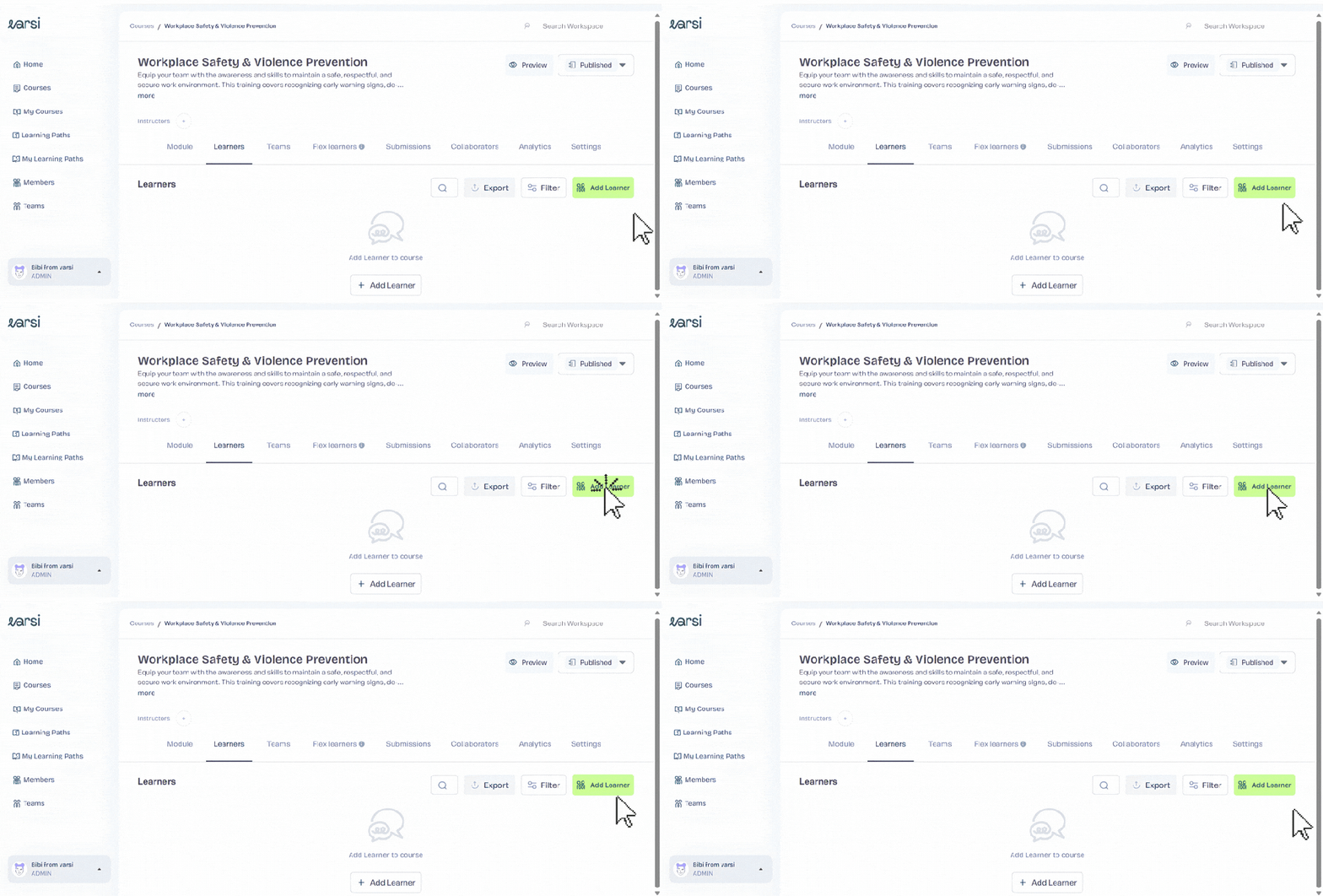
Enter the name of the learner you want to assign to the course and find them in the search results.
Step 5: Add the Learner
Once you’ve found the right person, click Add Member.
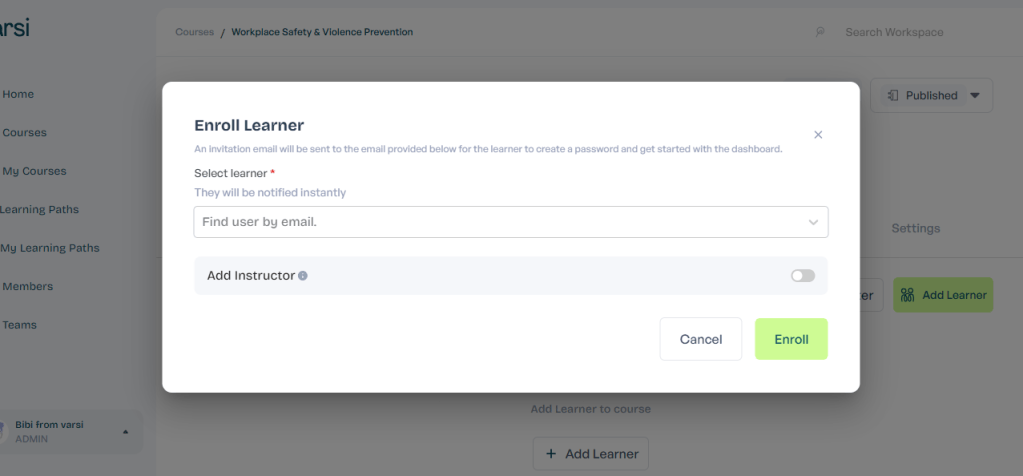
And that’s it! The learner is now added to the course and can begin their training.
Need to add someone who isn’t on your Varsi workspace yet? You’ll need to add them as a member first before assigning them to a course.


Leave a comment