Teams change, and your Varsi member list will too.
Whether someone has left the company, moved to a different team, or simply no longer needs access to training, removing them from Varsi is quick and straightforward.
In this guide, we’ll show you exactly how to remove a learner from your account in just a few steps.
Step 1: Open the Members Page
From your Varsi dashboard, head to the menu on the left-hand side. You’ll see options including Home, My Courses, Learning Paths, My Learning Path, Members, and Teams.
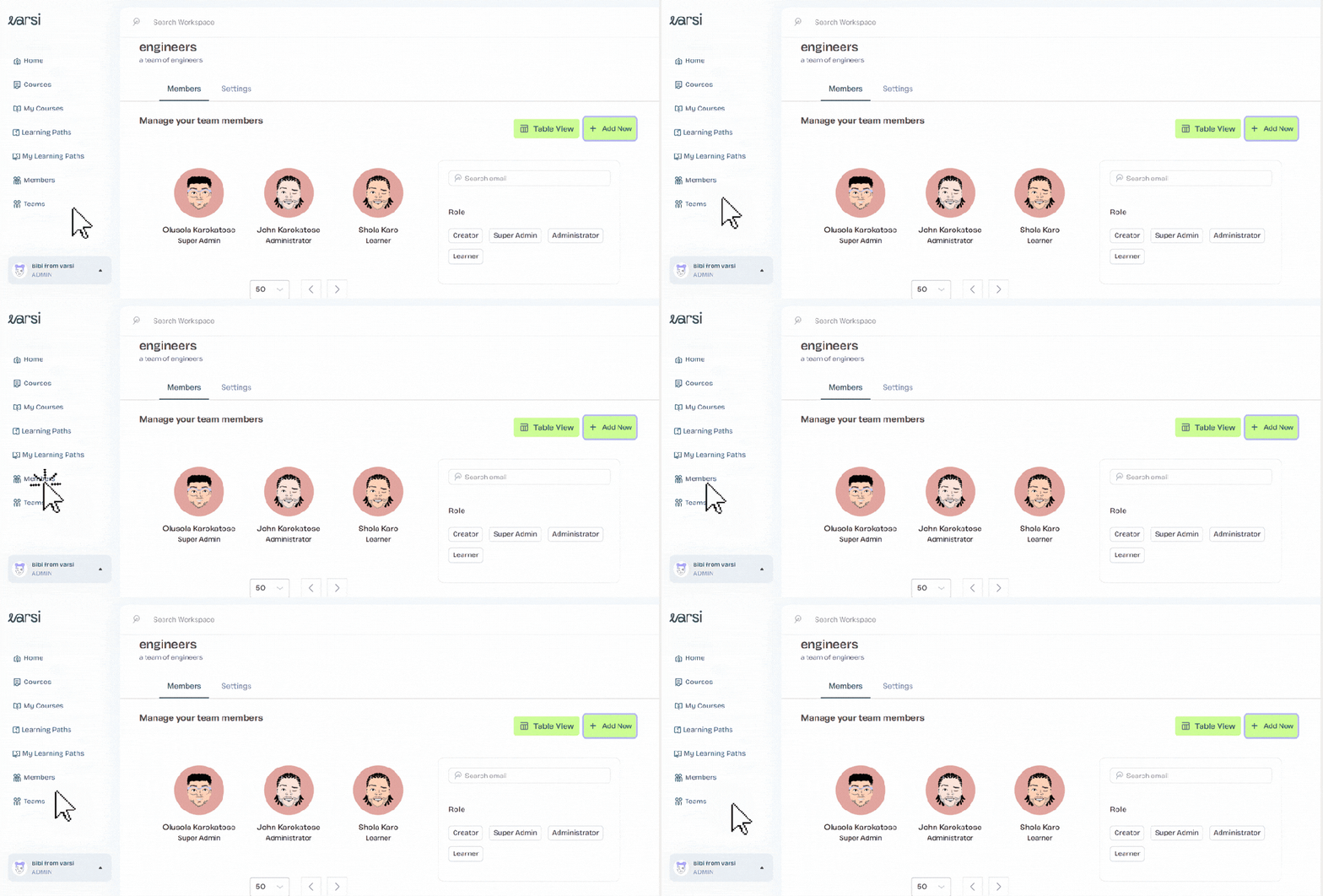
Click Members to open your Members page.
Step 2: Find the Learner You Want to Remove
Your Members page displays everyone currently registered to your Varsi account, along with their avatars.
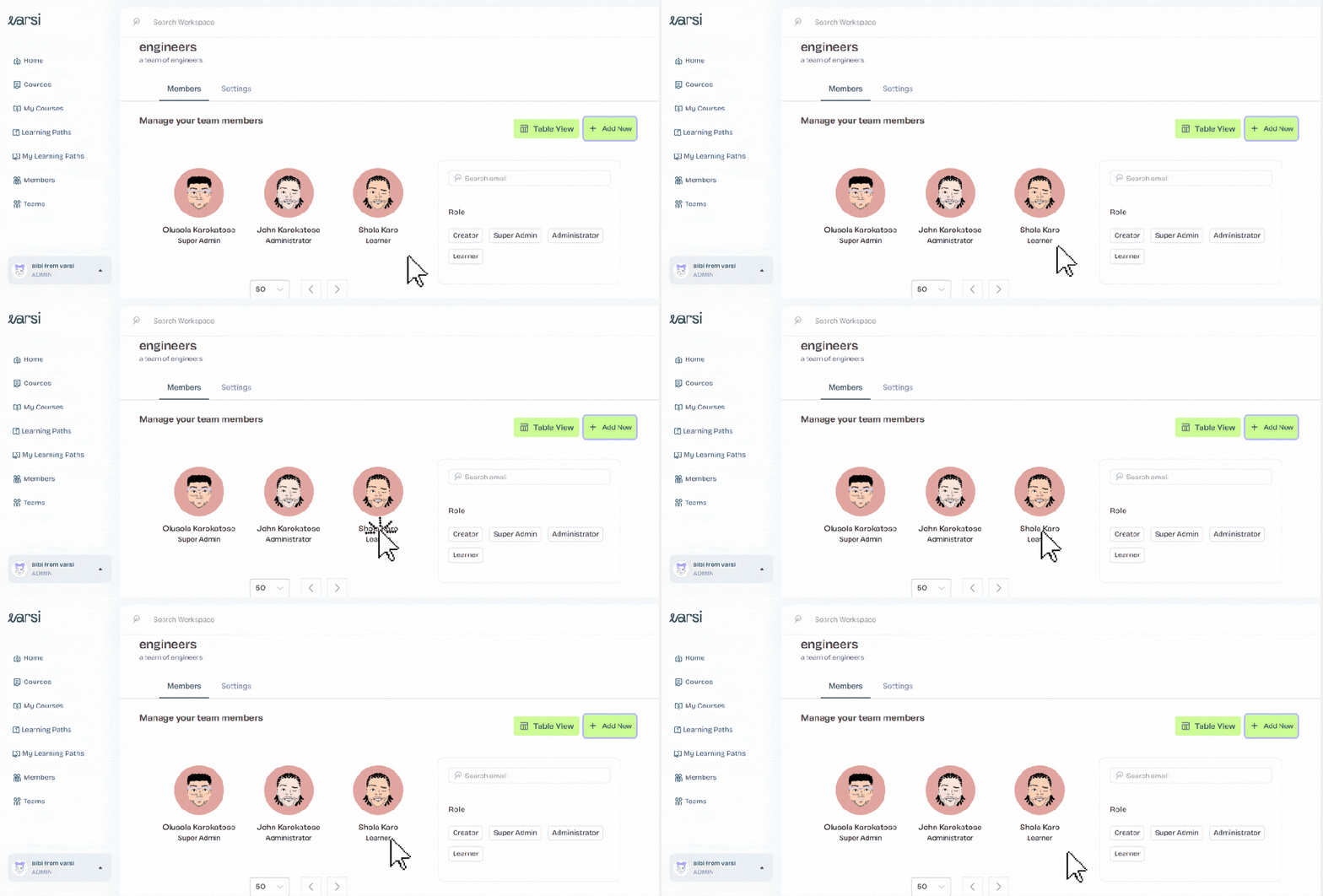
Find the learner you’d like to remove and click on their profile. This will open their account details and learner activity.
Step 3: Head to Settings
Once you’ve opened the learner’s profile, you’ll land on the Overview section, where you can see analytics about their learning activity.
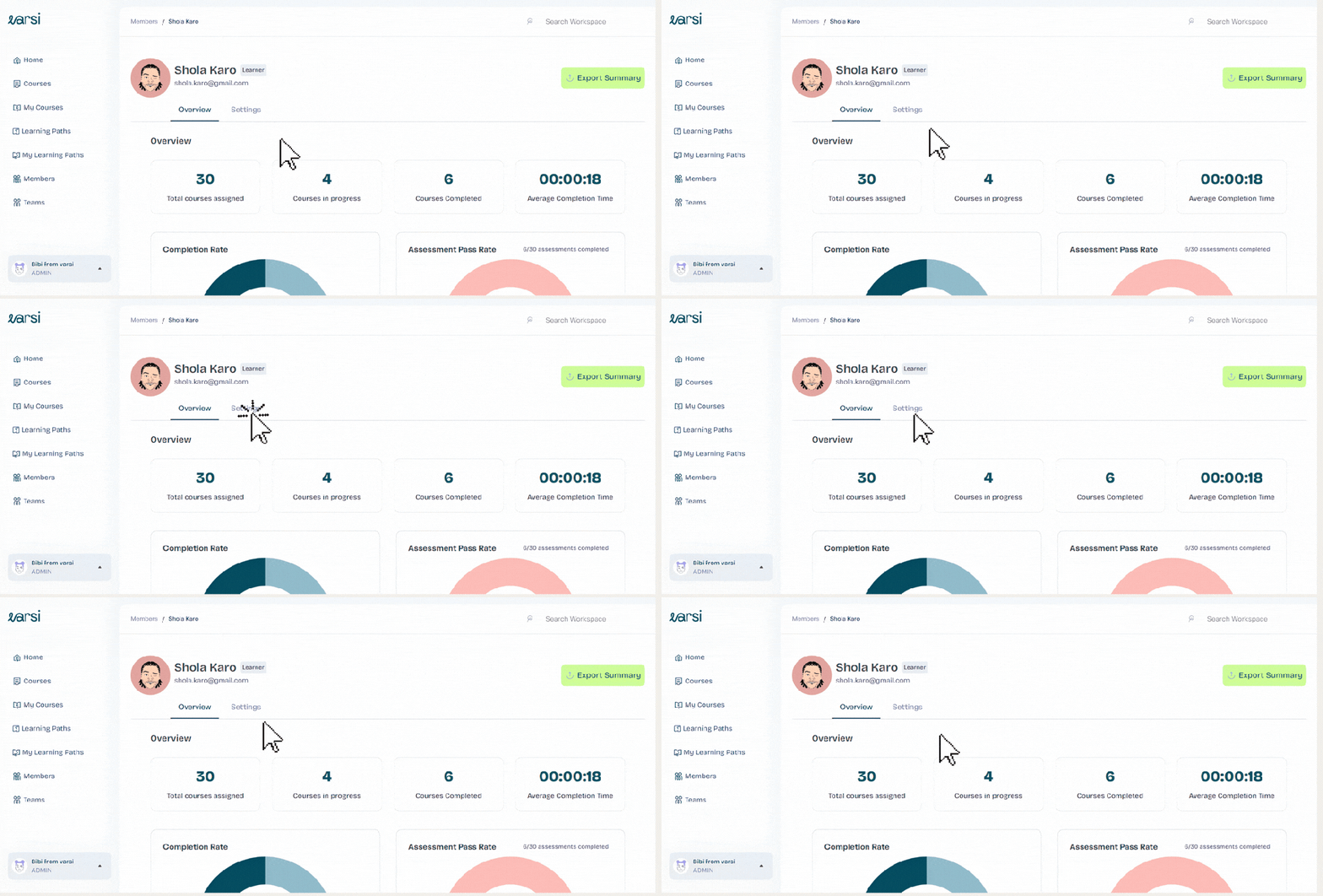
Next to Overview, you’ll find Settings. Click it to access the learner’s account settings.
Step 4: Scroll to “Remove Learner”
At the top of the Settings page, you’ll see the learner’s account information, including their first name, last name, and email address.
The learner’s first and last name can be edited here, while their email address cannot be changed.
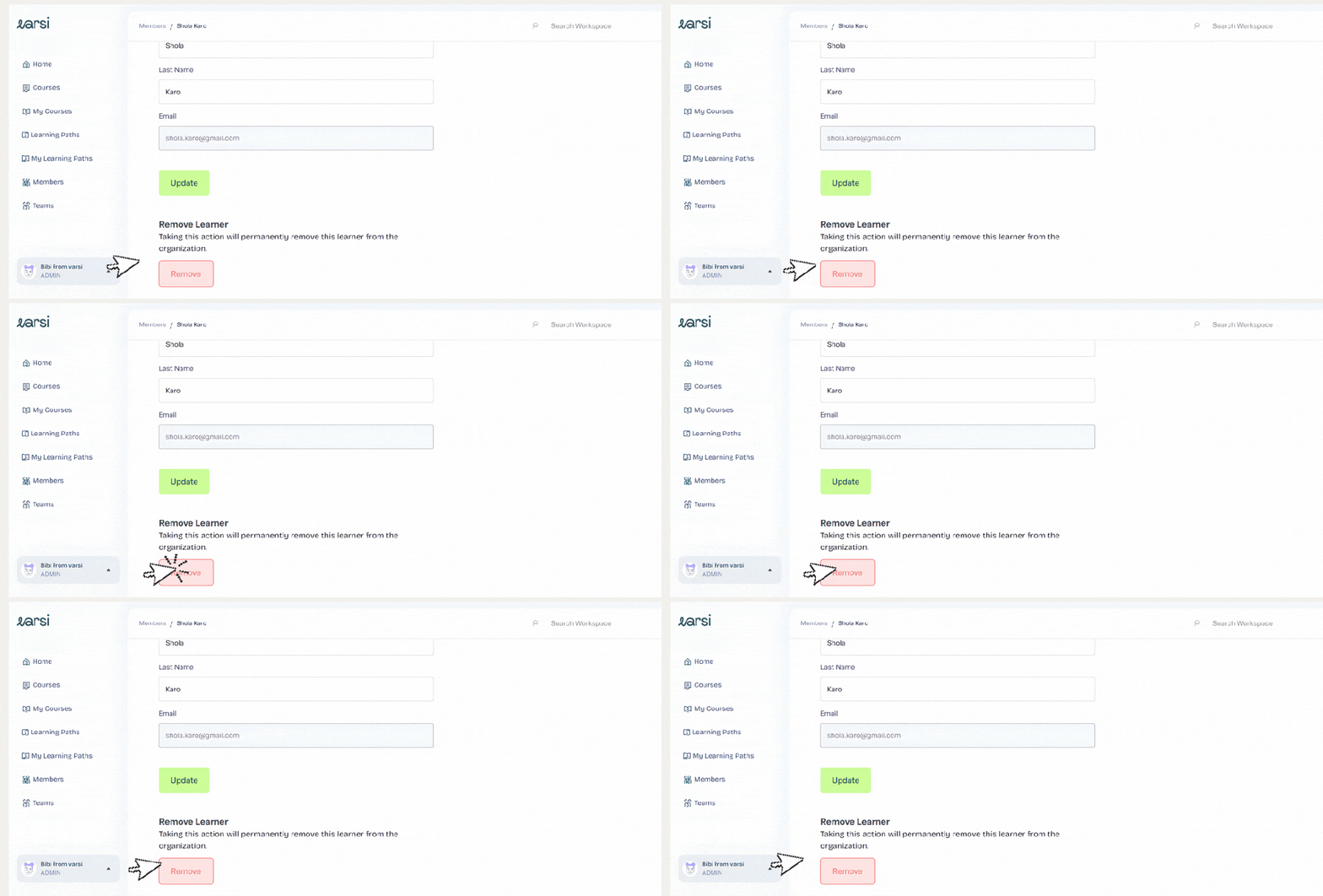
Scroll down until you find the Remove Learner option.
Step 5: Remove the Learner
Click Remove Learner to remove the learner from your Varsi account.
And that’s it! The learner has been removed, and you can get back to managing the rest of your team.
 blog.tryvarsi.com
Leave a comment