Got a team to train? Let’s get them into Varsi. Adding users takes just a few clicks, so you can spend less time managing your learner list and more time getting people up to speed.
Here’s how to add users to your Varsi workspace.
Step 1: Open the Members page
From your Varsi dashboard, use the side menu to select Members.
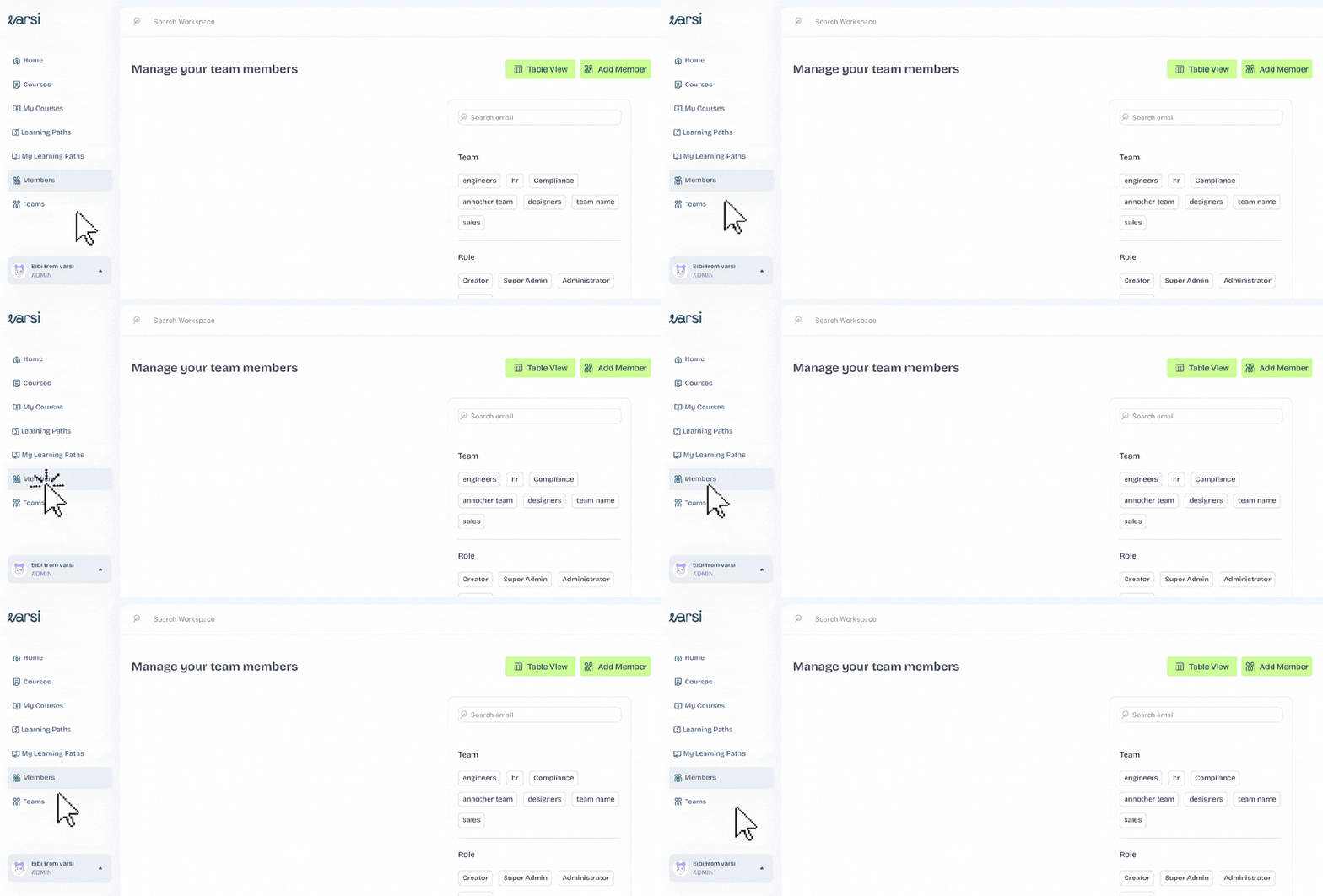
You’ll find it alongside Home, My Courses, Learning Paths, My Learning Path, and Teams.
Step 2: Choose How You Want to Add Members
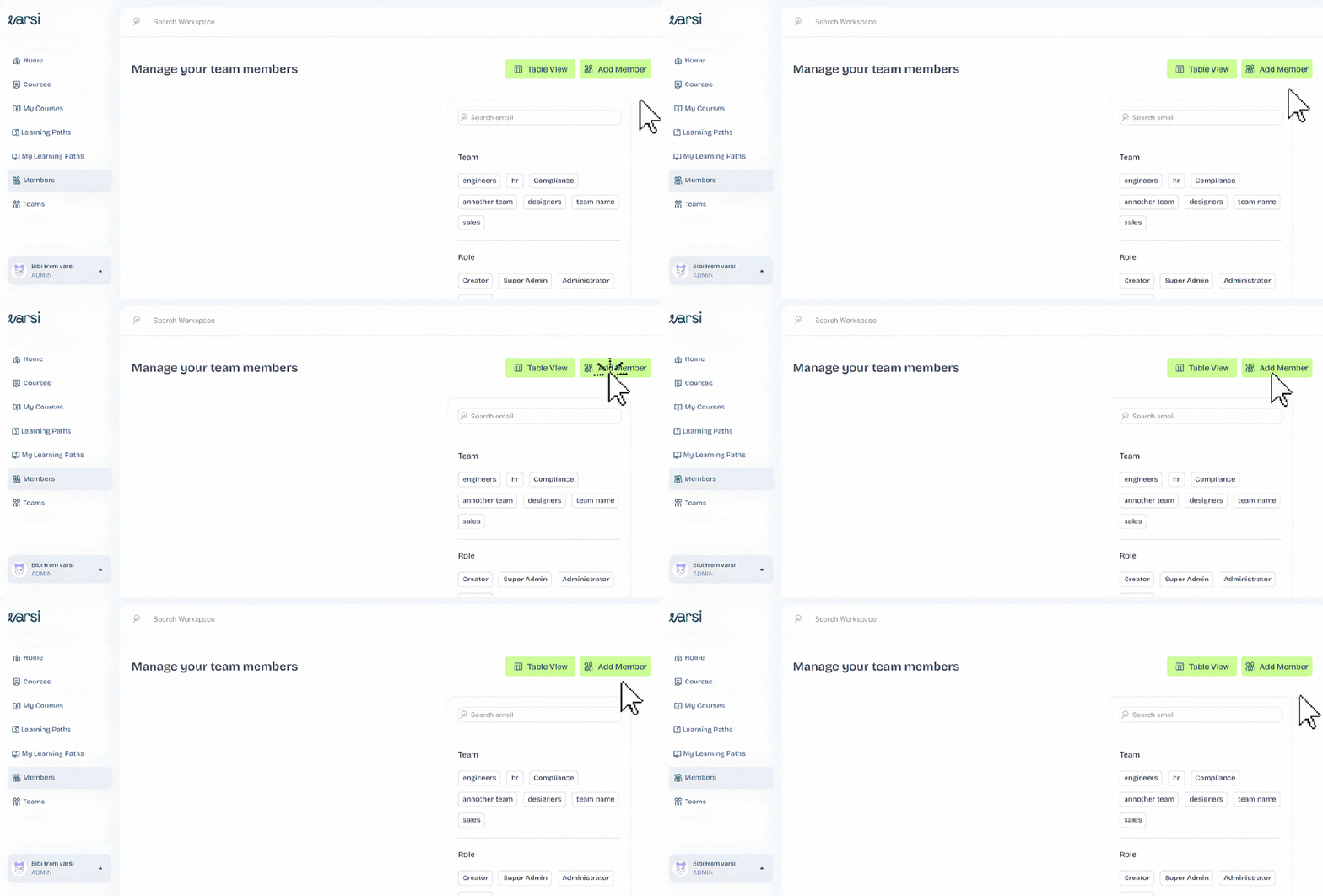
Once you’re on the Members page, you’ll see the “Add Member” button, which, when clicked, lets you:
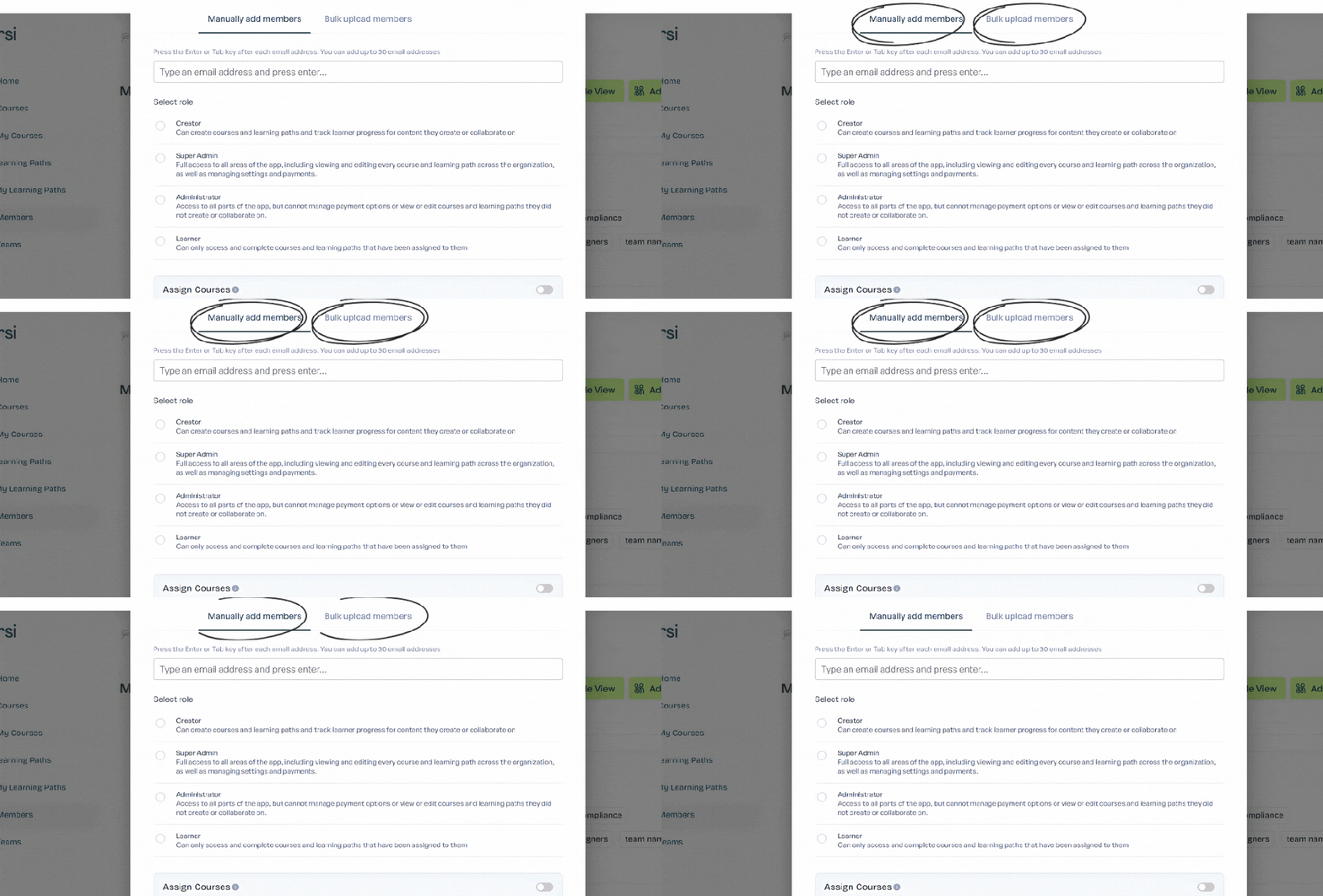
- Add Member — for adding members individually.
- Bulk Upload Members — for adding multiple members at once.
Choose the option that works best for you. Both will open a form where you can enter or upload the relevant member details.
Step 3: Add Your Member Details
This is where you choose how much information you want to set up from the get-go.
For individual members
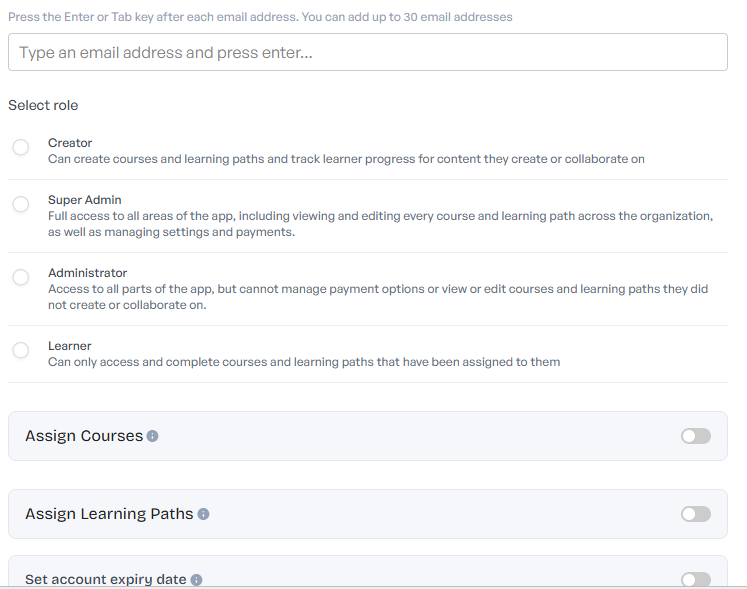
Select Manually Add Member to open the member form. You’ll first be asked to select the member’s role:
- Creator
- Administrator
- Super Admin
- Learner
Once you’ve selected a role, you’ll see a few optional switches that let you set things up before the member even gets started. You can use these to:
- Assign a course — give the member a course right away.
- Assign a learning path — add them to a learning path from the start.
- Set an expiry date — choose when the member’s account should expire.
Toggle on whichever options you need, complete the relevant fields, and you’re ready to add the member.
For bulk members
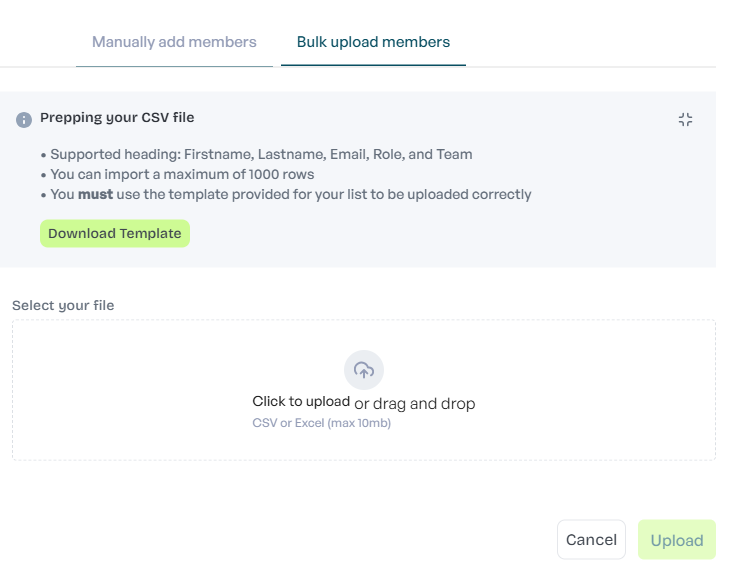
Need to add more than a few people? Bulk Upload Members is the option to choose.
Select the option to open the bulk upload form, then upload your CSV file containing the member information.
Before uploading, make sure your CSV follows the formatting guidelines displayed. These guidelines show you exactly how your file should be structured so Varsi can process your member list correctly.
Step 4: Submit, and You’re Done
Review the details, submit the form, and your new members will be added to your Varsi workspace.
And just like that, your learner list is created!


Leave a Reply